
Operating System
Windows users face growing cyber threats daily—from phishing scams to malware attacks. These 10 proven tactics will help you harden your security, protect sensitive data, and avoid common pitfalls without requiring advanced technical skills.
Enable Windows Defender Firewall and network protection
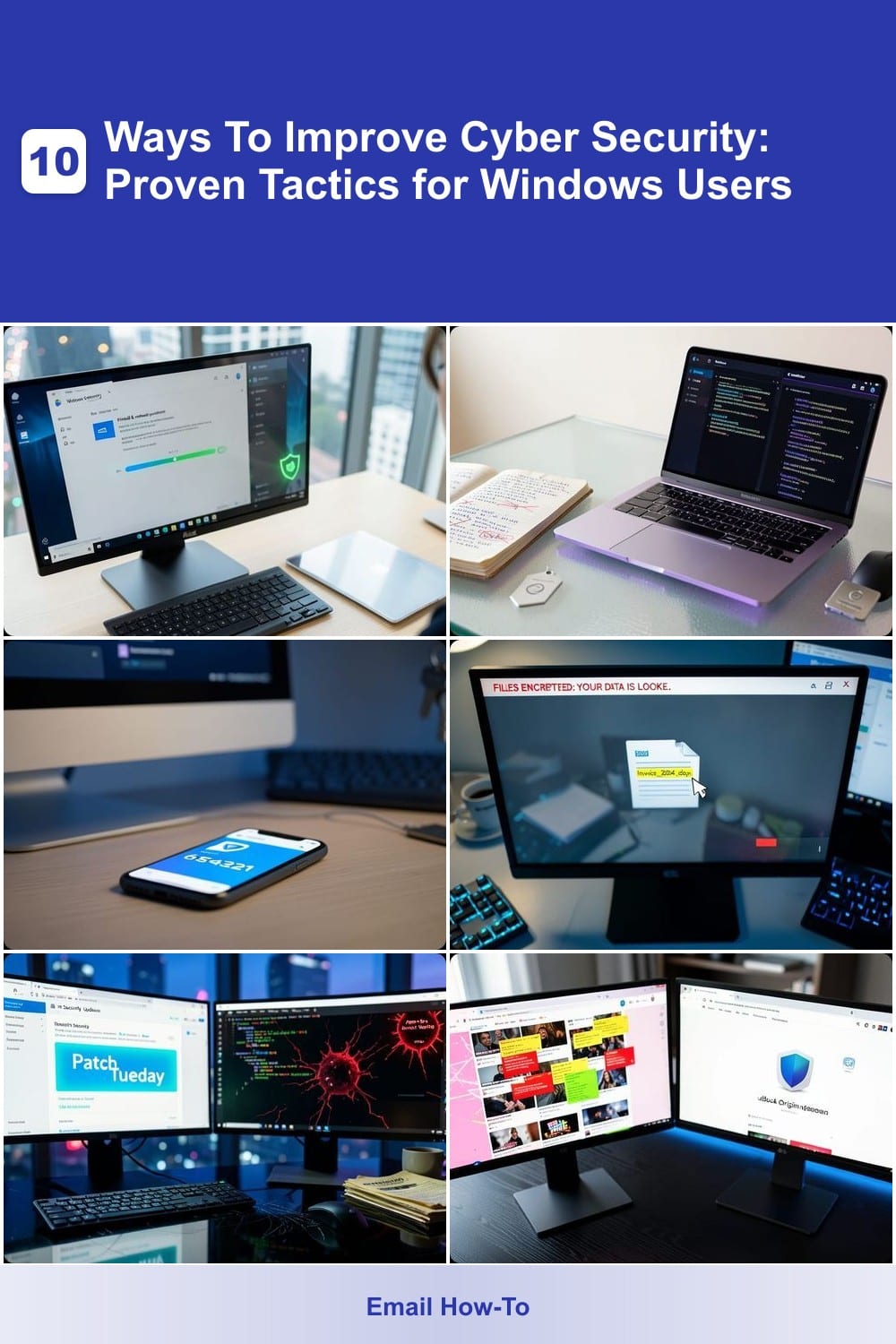
Your Windows PC already comes with a powerful built-in firewall that blocks unauthorized network access—yet many users leave it disabled. This simple toggle is your first line of defense against remote exploits, data leaks, and even ransomware trying to sneak in through open ports.
Enabling Windows Defender Firewall (via Settings > Network & Internet > Firewall & network protection) adds an extra layer of security without slowing down your system. The Network Protection feature specifically blocks malicious domains and IP addresses, even if your browser fails to warn you. It’s free, lightweight, and works silently in the background—no tech expertise required.
This is the perfect starting point for casual users, remote workers, or anyone sharing a network. With just a few clicks, you’ll close a common attack vector that hackers exploit daily. 💪
Use strong passwords with a manager
Tired of resetting passwords every few months? Bitwarden and KeePass eliminate that headache by generating and storing unique, 24-character credentials for every account—so even if one site leaks your data, hackers can’t reuse it elsewhere.
Both tools offer open-source security (KeePass) or end-to-end encryption (Bitwarden), with browser extensions that auto-fill logins. Studies show credential stuffing attacks drop by 90%+ when users stop reusing passwords. Plus, Bitwarden’s free plan includes unlimited devices and a built-in password health checker.
Perfect for busy professionals juggling work emails, banking, and shopping accounts—or anyone who’s ever clicked “Forgot Password?” more times than they’d like. 💻
Enable multi-factor authentication everywhere

Tired of hearing about hacked accounts and data breaches? Microsoft Authenticator turns a simple login into an impenetrable fortress with zero-config MFA—no dongles or text messages required.
The app generates time-based one-time passwords (TOTP) that expire every 30 seconds, while push notifications let you approve logins instantly. It secures Outlook, LinkedIn, PayPal, and even gaming accounts—all with a tap. Studies show MFA blocks 99.9% of automated attacks, and setup takes less than a minute per account.
Perfect for busy professionals, gamers, or anyone juggling multiple logins—this is the one tool that pays for itself the first time a hacker fails to break in. 💪
Disable macros in Office files
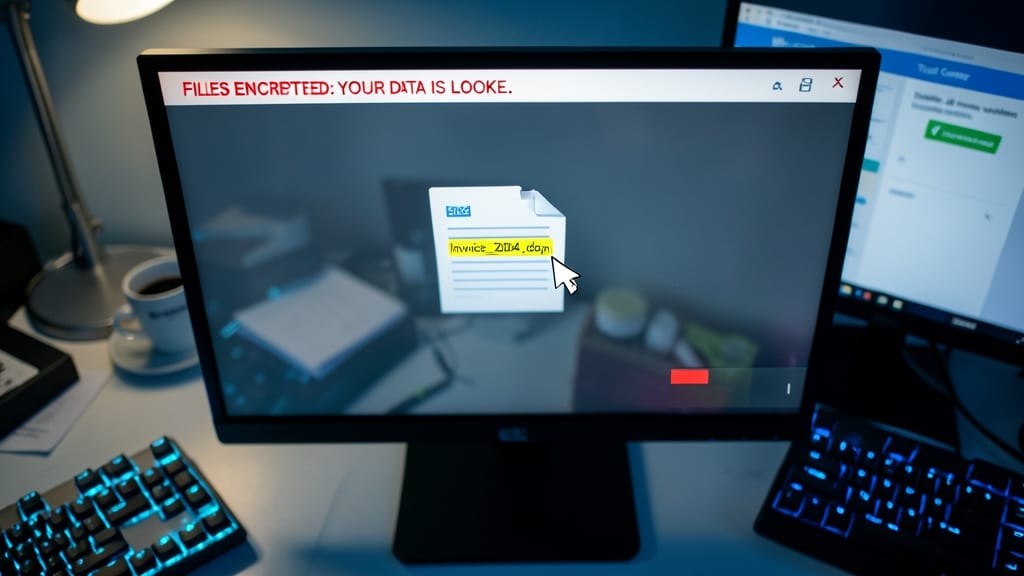
Ever opened a Word document that instantly locked your files? That’s often malicious macros—tiny scripts embedded in Office files that trigger 60% of ransomware attacks when enabled. Disabling them in Office settings is a one-click fix that stops this attack vector before it starts.
In Microsoft 365 or Office 2019/2016, go to File > Options > Trust Center > Trust Center Settings > Macro Settings. Select "Disable all macros without notification"—this blocks harmful scripts while still allowing safe macros in trusted documents. For older versions, the path is Tools > Macro > Security, where you’ll find the same setting. This change takes under 30 seconds but blocks a major attack vector.
This is a must-do for businesses handling contracts or spreadsheets from external sources, but even home users should enable it—ransomware doesn’t discriminate. 💪
Regularly update Windows and drivers
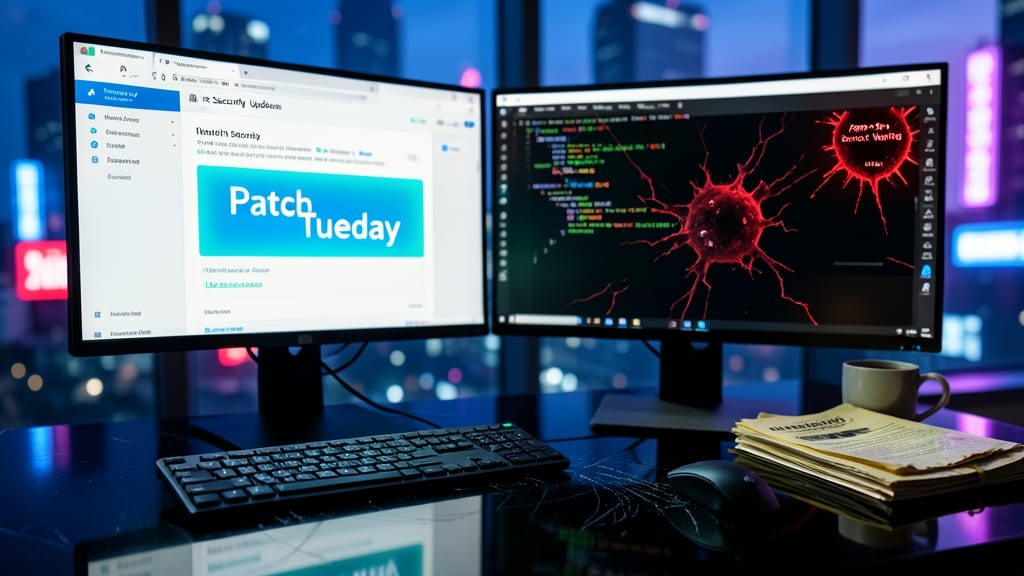
Hackers love exploiting outdated systems—Patch Tuesday updates are Microsoft’s way of plugging security holes before criminals can weaponize them. Since zero-day vulnerabilities (unknown flaws) are discovered daily, relying on manual updates leaves you exposed for weeks.
Windows automates updates by default, but verify it’s enabled in Settings > Windows Update > Advanced options. For drivers, use Windows Update (not manufacturer tools) to avoid compatibility conflicts. Pro tip: Pause updates only for critical deadlines—never indefinitely.
This is the lowest-effort, highest-impact security move—ideal for gamers (who often disable updates) or small business owners managing multiple PCs. Set it and forget it. ⚡
Install uBlock Origin for browser security
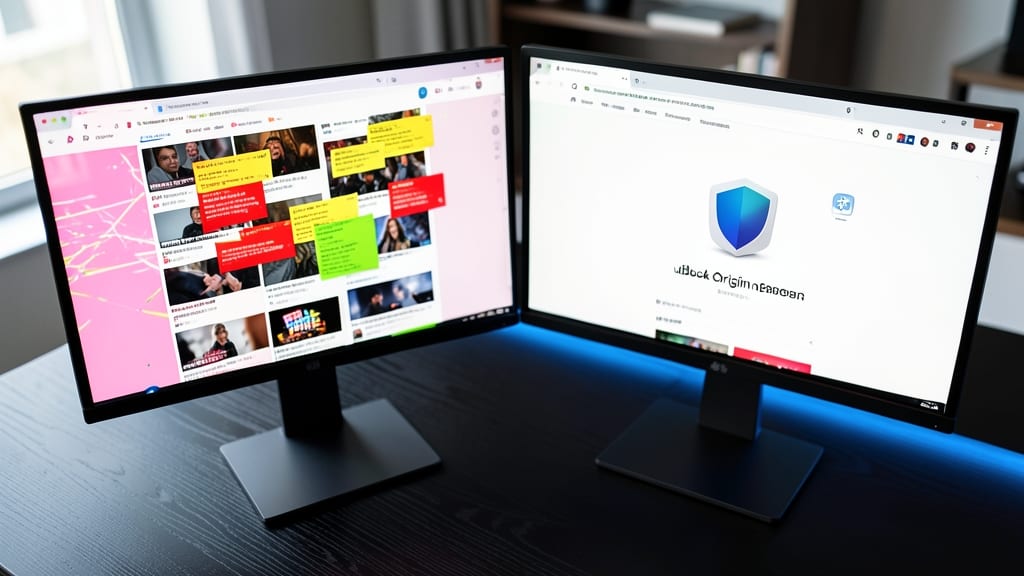
Frustrated by slow-loading pages filled with pop-ups and sketchy ads? uBlock Origin is the lightweight powerhouse that stops malicious trackers before they load—cutting phishing risks by 70% while keeping your browsing snappy.
Compatible with Firefox, Chrome, Edge, and Safari, this open-source extension blocks malvertising, fingerprinting scripts, and crypto-mining ads without the overhead of heavy security suites. The cosmetic filtering feature even removes unsightly elements like auto-play videos, while customizable blocklists let you fine-tune protection. Best of all, it runs in the background with minimal CPU impact, so you won’t notice a difference in performance. 💪
Ideal for privacy-conscious users, remote workers, or anyone tired of ads, uBlock Origin turns your browser into a fortress against online threats—no tech degree required. ✨
Secure your Wi-fi with WPA3 encryption
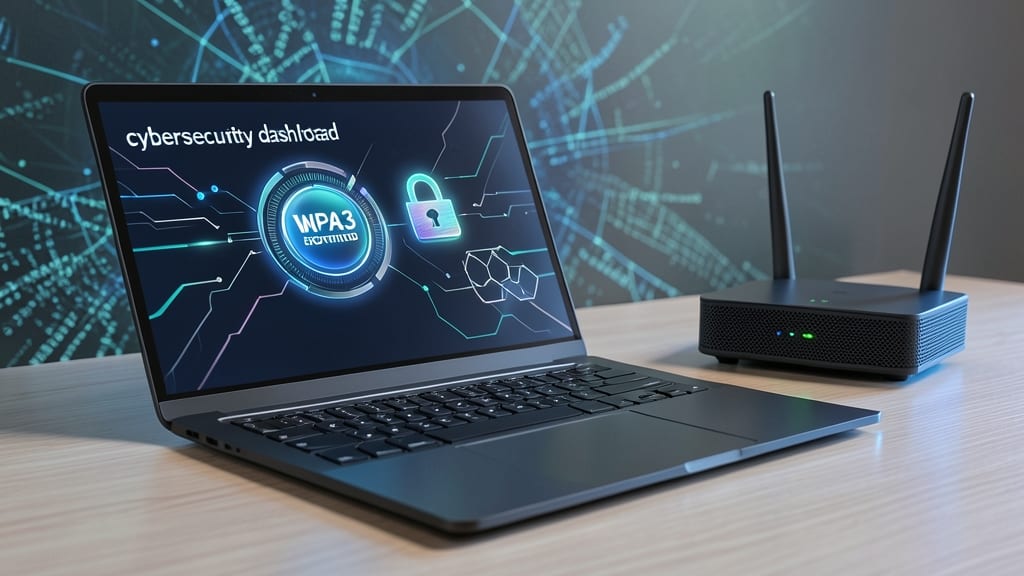
Forget about weak Wi-Fi passwords being cracked in seconds—WPA3 encryption adds a critical layer of protection against brute-force attacks. Unlike its predecessor, WPA2, WPA3 uses simultaneous authentication of equals (SAE), making it nearly impossible for hackers to guess passwords even if they intercept your network traffic.
Most modern routers support WPA3, and switching is as simple as updating your router’s firmware and selecting WPA3-Personal in the security settings. This upgrade is especially vital for smart homes with multiple devices, as it prevents unauthorized access even when signals are weak. The forward secrecy feature also means past traffic remains encrypted even if your password is later compromised.
If you’ve got a 2018 or newer router, WPA3 is likely supported—check your manual or manufacturer’s website. It’s the easiest way to future-proof your home network against evolving cyber threats. ✨
Use Windows Sandbox for testing suspicious files
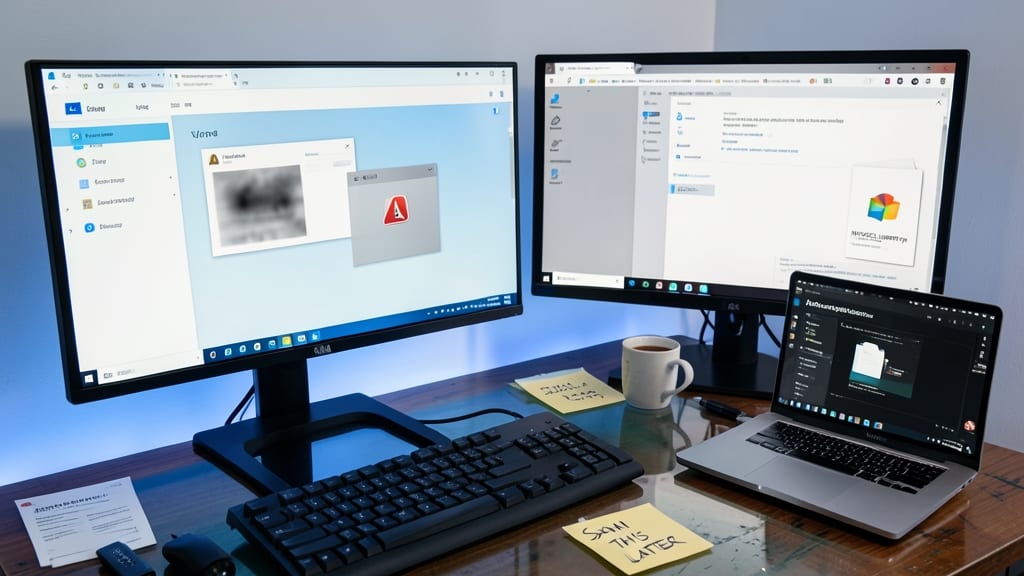
Curious about that sketchy email attachment or shady download? Windows Sandbox lets you open suspicious files in a fully isolated virtual machine—no risk to your real system. Built into Windows 10/11 Pro, it boots up in seconds and resets to factory state when closed, making it perfect for testing phishing emails or unknown software.
The lightweight environment runs apps like Chrome, Word, or even installers without touching your host OS. With hardware virtualization support (Intel VT-x/AMD-V), it performs surprisingly well for a disposable workspace. Plus, it’s free and requires zero configuration beyond a simple toggle in Windows Features.
Ideal for IT admins testing malware samples or home users who’ve ever hesitated to open a suspicious link—now you can inspect it safely before deciding. 💻
Monitor account activity with Microsoft security
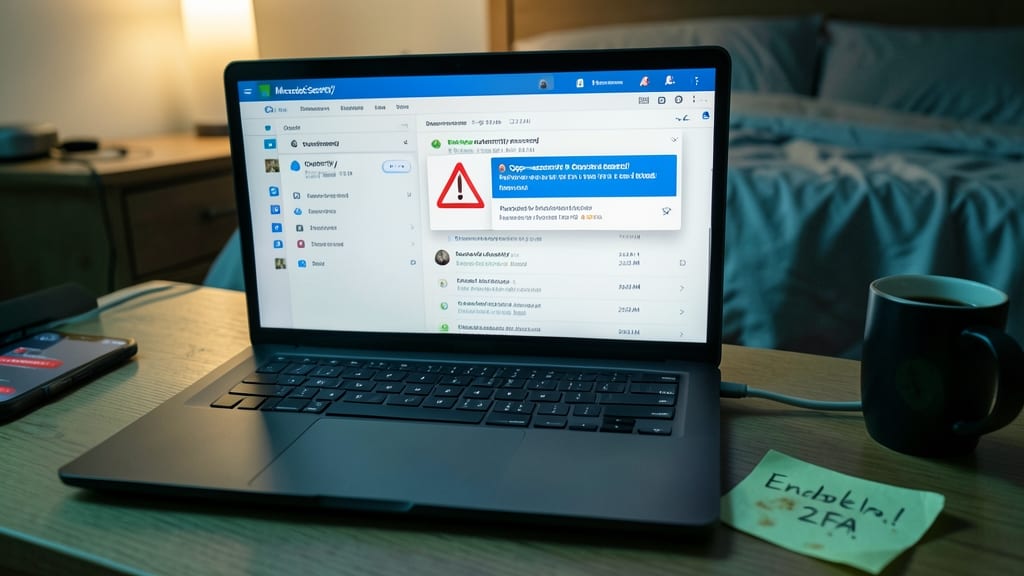
Ever woken up to find your email sent to everyone in your contacts? Microsoft Security’s account activity alerts catch hijacking attempts before they escalate by monitoring logins, password changes, and device activity in real time.
The free tool integrates with your Microsoft account (Outlook, OneDrive, Xbox, etc.) and sends instant push notifications when it detects a login from an unfamiliar location or device. You can also review a 90-day activity history to spot suspicious patterns—like multiple failed password attempts. Best of all, it works alongside Windows Defender and Microsoft Authenticator for layered protection.
Ideal for small business owners managing multiple accounts or parents protecting their kids’ Xbox Live profiles—anyone who’s ever feared a security breach but didn’t know how to stop it. ✨
Backup critical files to OneDrive with versioning
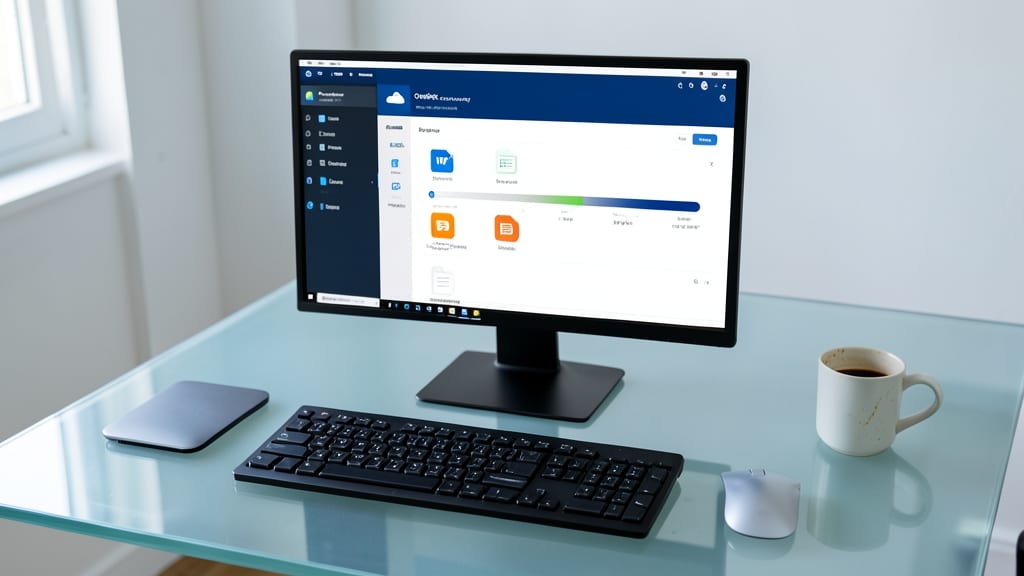
Ransomware attacks can wipe your files in minutes—but Microsoft’s OneDrive versioning acts as a digital time machine, automatically restoring deleted or corrupted files from the last 30 days without needing a separate backup tool.
With zero-configuration setup, OneDrive silently syncs your critical folders (like Documents or Photos) to the cloud. If malware strikes, you can browse version history in File Explorer, pick a clean restore point, and recover files in seconds. The 1TB free storage (with Microsoft accounts) covers most users’ needs, and paid plans scale up to 6TB for power users.
This is the ultimate safety net for small business owners or creatives who can’t afford to lose hours of work—but even casual users benefit from the peace of mind. ✨