
PowerPoint
PowerPoint transitions can transform a basic presentation into a professional, engaging slideshow. These seven transition effects will help you create smooth flow, maintain audience attention, and elevate your next presentation to the next level.
Fade Slide Transition for Elegant Presentation Flow

Need a transition that exudes professionalism without stealing focus from your content? The Fade effect in PowerPoint is your go-to for corporate or academic presentations. It smoothly dissolves one slide into the next, creating a seamless flow that keeps your audience engaged without distraction.
Available in all modern versions of PowerPoint, this effect is customizable with speed adjustments and sound options. Pair it with subtle timing (3-5 seconds) to avoid abrupt shifts, and use it consistently across slides for a cohesive look. The minimalist visual impact makes it ideal for data-driven slides or formal discussions.
Perfect for executives, educators, or anyone delivering high-stakes content, the Fade ensures your message stays front and center. ✨
Slide Morph Transition for Dynamic Content Shifts

When your slides need to evolve—like a bar chart transforming into a line graph—Slide Morph is the secret weapon. Unlike static transitions, this effect fluidly animates elements, making complex data shifts feel intuitive rather than jarring.
Available in PowerPoint 2016 and later, Morph works best with vector-based objects (shapes, charts, text boxes) and even lets you animate color changes or object movements between slides. The smooth interpolation ensures no awkward pauses, keeping your audience focused on the content—not the transition.
Analysts presenting financial trends, designers showcasing UI wireframes, or educators explaining scientific processes will find Morph’s zero-distraction flow ideal for maintaining engagement. It’s the perfect choice when your slides tell a story that demands visual continuity. ✨
Push Transition for High-Impact Slide Changes
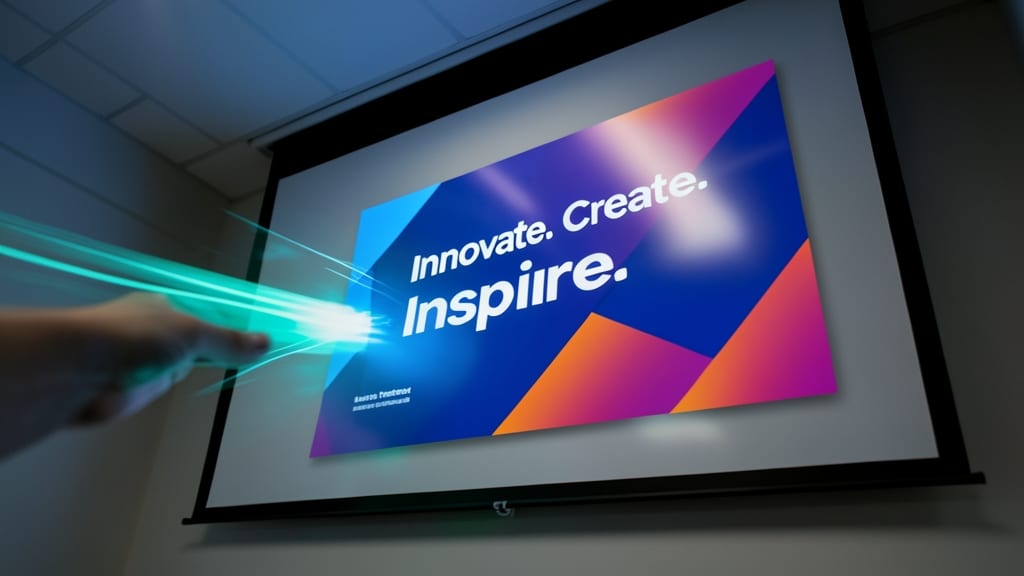
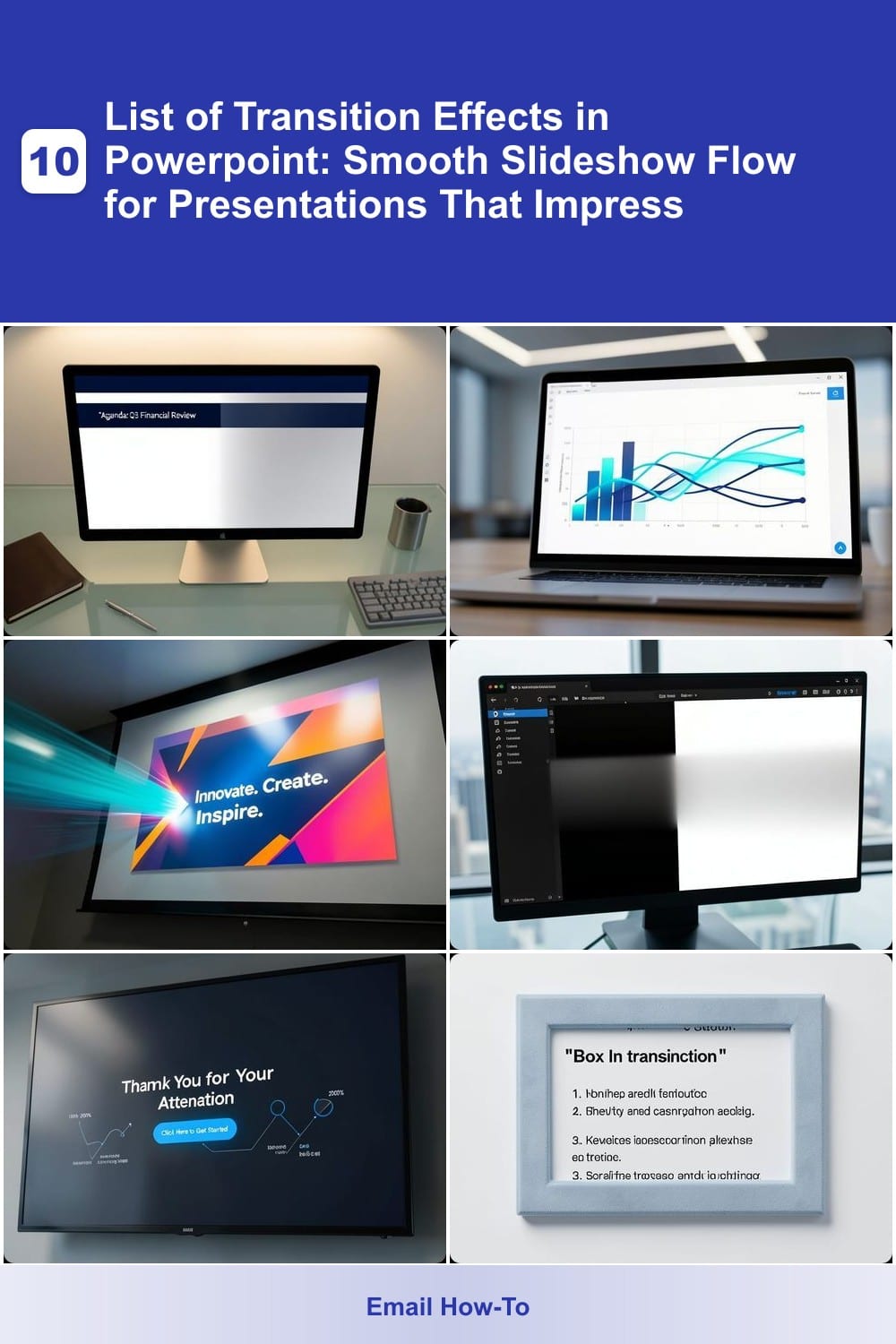
Need to inject excitement into your presentation? The Push Transition delivers a bold, dynamic effect by making slides appear as if they’re being pushed from the side—perfect for keynotes, motivational talks, or creative pitches where energy matters most.
Available in PowerPoint 2016 and later, this transition works by sliding the outgoing slide off-screen while the new one enters with a sharp, directional motion. You can customize the speed and direction (left, right, up, or down) to match your presentation’s vibe. For maximum impact, pair it with bold colors or high-contrast visuals to make the movement stand out.
This transition shines when you want to grab attention—think product launches, TED-style talks, or brainstorming sessions. Just avoid overusing it; a few strategic pushes can elevate your message without overwhelming your audience. ✨
Wipe Transition for Clean and Professional Slideshows
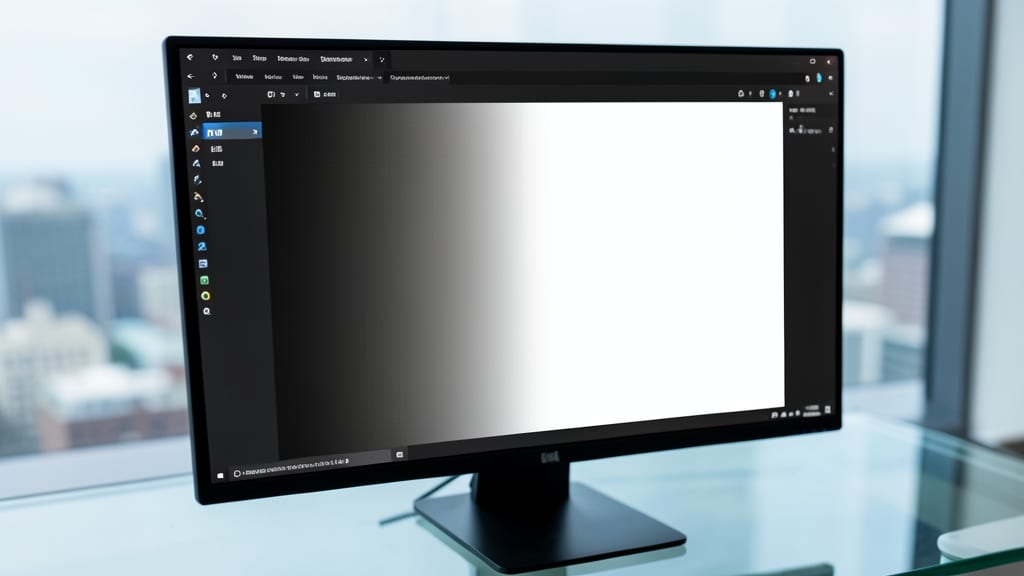
Tired of transitions that feel too flashy or distracting? The Wipe Transition delivers a sharp, theater-like curtain effect—perfect for presentations where clarity and professionalism take center stage.
Available in horizontal, vertical, or diagonal directions, this transition ensures a crisp, uncluttered shift between slides, ideal for business reports or client meetings. Unlike morphs or pushes, it avoids visual noise while keeping the flow dynamic. Pair it with subtle timing (0.5–1.5 seconds) for polished control.
Marketers, consultants, and executives will appreciate how it reinforces structure without overpowering content. Use it to signal transitions between key sections—like moving from data to strategy—with effortless authority. ✨
Zoom Transition for Emphasizing Key Slides

Need to make your closing slide or call-to-action stand out? The Zoom transition in PowerPoint does exactly that by smoothly zooming into key slides, ensuring your audience locks onto the most critical content.
This effect works by zooming in from 100% to 200% scale (or customizable ranges) while fading slightly for a polished look. You can adjust the speed and direction (e.g., zoom in from the center, top, or bottom) to match your presentation’s tone. Best of all, it’s built into PowerPoint 2016 and later, so no extra plugins are needed.
Sales teams, marketers, and trainers will love this for highlighting conclusions, pricing tables, or actionable next steps. Just avoid overusing it—once per presentation keeps it impactful without feeling gimmicky. ✨
Box In Transition for Structured Slide Reveals
Need to guide your audience through a process without overwhelming them? The Box In transition frames content in a clean, structured reveal—perfect for tutorials, training modules, or step-by-step guides.
This transition creates a visual boundary around new content, drawing attention while maintaining clarity. You can customize the box’s speed, size, and entry direction (top, bottom, left, or right) to match your slide’s layout. Unlike flashy effects, it keeps focus on the message, making complex workflows easier to follow.
Trainers, educators, and instructional designers will love this for lesson plans or software demos, where precision matters. It’s the subtle yet effective choice for presentations where clarity outshines spectacle. ✨
Random Bars Transition for Creative and Playful Presentations

Tired of predictable slide transitions? The Random Bars effect injects spontaneity into your presentations with chaotic yet controlled motion—colorful bars dart across the screen in unpredictable patterns, breaking the monotony of standard animations.
This high-energy transition is perfect for breaking up rigid slide sequences. You can customize the bar speed, color, and direction, and it works seamlessly in PowerPoint 2016 and later. The effect’s playful nature makes it ideal for brainstorming sessions or creative pitches where you want to keep the audience engaged.
Marketers, designers, and educators will love this transition for its ability to spark curiosity and add a touch of whimsy. Just avoid overusing it—save it for moments when you want to energize your presentation. ✨