
Coding
Excel’s math and trigonometric functions unlock powerful data analysis and engineering capabilities. Whether you’re calculating distances, analyzing financial models, or solving physics problems, these 10 essential functions will transform raw numbers into actionable insights—no advanced degree required.
SUM Function for Basic Arithmetic Operations
If you’ve ever struggled to add up a column of numbers in Excel—whether it’s monthly expenses, sales figures, or inventory counts—the SUM function is your new best friend. This simple yet powerful tool eliminates manual addition errors and saves hours of work, making it the most-used function in spreadsheets everywhere.
To use it, type =SUM(range) in any cell, replacing "range" with your data (e.g., =SUM(A1:A10)). Excel instantly calculates the total, and you can even sum non-adjacent cells like =SUM(A1,B5,C10). For dynamic ranges, use =SUM(A1:A100)—it adjusts automatically when new data is added. Pro tip: Press Alt + = to auto-sum the selected range in one click.
Perfect for accountants, small business owners, or anyone managing budgets, this function ensures accuracy and efficiency. Master it first, and you’ll build confidence for tackling more advanced Excel formulas. ✨
AVERAGE Function for Statistical Analysis
When your dataset spans thousands of rows and you need a single number to represent the whole picture, the AVERAGE function becomes your statistical powerhouse. Unlike SUM, which totals values, AVERAGE calculates the mean—the true center of your data—making it indispensable for everything from quality control to financial forecasting.
Simply type =AVERAGE(range) (e.g., =AVERAGE(A1:A100)) to instantly compute the arithmetic mean, ignoring text or empty cells. For weighted averages, nest it with SUMPRODUCT or IF functions. Excel’s AVERAGEA variant even includes logical values (TRUE=1, FALSE=0), though AVERAGE is preferred for pure numeric datasets.
Perfect for data scientists validating models or manufacturers tracking production consistency, this function turns raw numbers into clear performance indicators with just a few keystrokes. ✨
SIN and COS for Trigonometric Calculations

Need to model the path of a satellite, analyze AC circuit waveforms, or calculate stress points in a bridge? Excel’s SIN and COS functions turn angles into precise coordinates—no graphing calculator required.
Use SIN(angle) to find the vertical component of a right triangle (e.g., =SIN(RADIANS(30)) returns 0.5), while COS(angle) reveals the horizontal component. Remember: Excel expects radians, so always wrap angles in RADIANS() (e.g., =COS(RADIANS(90)) returns 0). These functions power everything from circular motion physics to signal processing in electrical engineering.
Perfect for students, hobbyist engineers, or professionals who need quick, accurate trig calculations without diving into programming. Just plug in your angle, and Excel handles the rest. ✨
TAN Function for Slope and Angle Calculations

When designing a roof, mapping terrain, or aligning machinery, the TAN function in Excel becomes your precision tool. Unlike basic math functions, it directly converts horizontal/vertical measurements into angles—critical for architects, surveyors, and engineers who need exact degrees for structural integrity or site planning.
Enter two values: the rise (vertical distance) and run (horizontal distance), then use =TAN(rise/run) to get the angle in radians. Multiply by 180/PI() to convert to degrees—perfect for calculating roof pitches (e.g., 4/12 = 18.4°) or terrain slopes. Excel’s built-in DEGREES() function streamlines this, ensuring accuracy without manual conversions.
Ideal for professionals who need to visualize slopes or angles, this function bridges raw measurements with real-world applications—whether you’re drafting blueprints or analyzing mechanical systems. ✨
PI Function for Circular Geometry
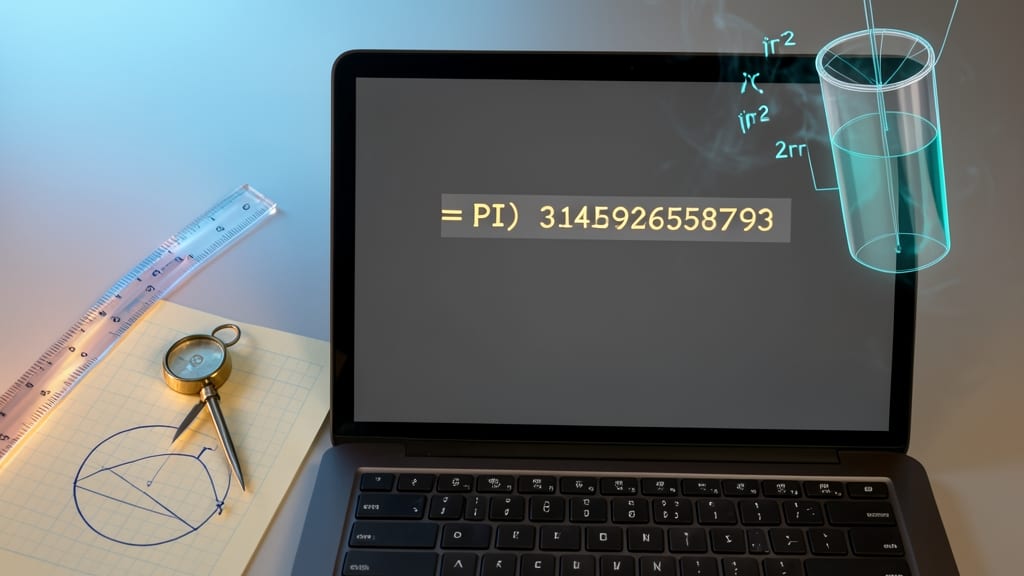
Tired of manually typing 3.14159 for every circular calculation? The PI() function in Excel automates this with a single input—just type =PI() to pull the full precision of π (15 digits!) for any geometry problem.
Use it to calculate a circle’s area (πr²) or circumference (2πr) instantly, or combine it with other functions like POWER() for volumes (e.g., =PI()*POWER(5;2) for a 5-unit radius). It’s the backbone of CAD designs, pipe sizing in HVAC, or even pizza crust calculations (yes, even chefs use this!).
Perfect for engineers, DIYers, and anyone designing circular components—no math degree required. ⚡
POWER Function for Exponential Growth Models

When your data isn’t just growing linearly but exponentially, the POWER function becomes your secret weapon. Whether you’re forecasting investments, modeling bacterial growth, or analyzing decay rates, this function lets you raise any number to any power—no calculator needed.
Simply type =POWER(base, exponent) to instantly compute results like compound interest (e.g., POWER(1.05, 10) for 5% annual growth over 10 years) or population projections (e.g., POWER(2, 5) for doubling every period). It handles negative exponents too, making it perfect for depreciation or dilution calculations.
Ideal for financial planners and data analysts, this function bridges the gap between raw numbers and real-world scenarios—like predicting stock returns or tracking resource depletion. ✨
SQRT Function for Root Calculations

Need to find the square root of a number instantly? The SQRT function in Excel handles this with precision—whether you're calculating distances in physics, optimizing algorithms in computer science, or solving geometry problems.
Simply type =SQRT(number) in any cell, and Excel returns the square root. For example, =SQRT(25) instantly gives you 5. It’s perfect for scenarios where manual calculations would be tedious, like determining the diagonal of a square or analyzing quadratic equations.
This function is a lifesaver for students, engineers, and developers who need quick, accurate results without reaching for a calculator. ⚡
RADIANS Function for Unit Conversion

Stuck converting angles for robotics simulations or physics models? The RADIANS function bridges the gap between degrees and radians—Excel’s native trig functions (like SIN or COS) require radians, but real-world data often uses degrees.
Simply type =RADIANS(angleindegrees)—for example, =RADIANS(90) converts 90° to 1.5708 radians (π/2). This is especially useful when integrating Excel with programming languages like Python or MATLAB, where unit consistency is critical. Pair it with DEGREES for bidirectional conversions.
Engineers and programmers will love this for trajectory calculations, rotational mechanics, or game physics—no manual conversions needed. ⚡
ASIN Function for Inverse Trigonometry

Ever needed to find an angle when all you have is its sine value? The ASIN function in Excel flips the script—it calculates the arcsine (inverse sine) of a number, returning the angle in radians that produces that sine value. This is a game-changer for fields like computer graphics, where you might need to reconstruct angles from pre-calculated sine values, or in navigation systems to determine precise bearings.
Here’s how it works: ASIN(0.5) returns 0.5236 radians (or 30 degrees), because the sine of 30° is 0.5. The function expects a value between -1 and 1, inclusive—anything outside that range triggers a #NUM! error. Pair it with DEGREES() to convert results to degrees instantly, making it perfect for real-world applications where angles are more intuitive.
Game developers use ASIN to calculate camera angles in 3D environments, while structural engineers rely on it to derive precise measurements from trigonometric ratios in load-bearing designs. If you’re working with angles hidden in sine values, this function is your shortcut to clarity. ✨
ROUND Function for Clean Data Presentation
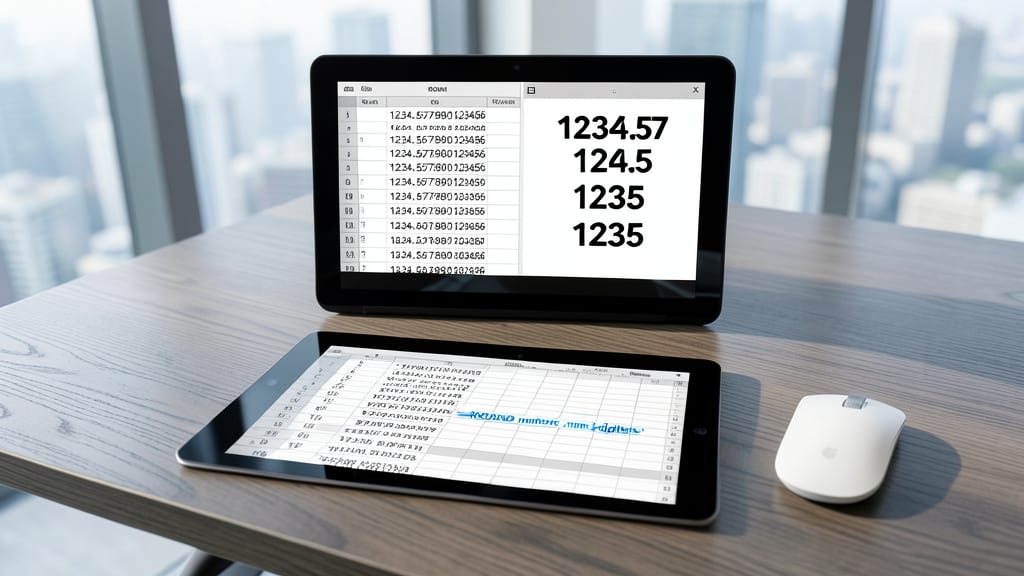
Tired of drowning in decimal places that distract from your data’s core message? The ROUND function is your secret weapon for presenting numbers exactly how your audience needs them—whether that’s two decimal places for currency or whole numbers for clean dashboards.
With syntax like =ROUND(number, num_digits), you control precision effortlessly. Need to round $123.4567 to $123.46 for a financial report? Just use =ROUND(A1, 2). For scientific data, round to three decimal places for consistency. The function even handles negative numbers and edge cases like 0.5 (which rounds up).
Perfect for accountants simplifying ledgers, scientists standardizing results, or UX designers creating intuitive dashboards, this function ensures clarity without sacrificing accuracy. 💡