
Software
Microsoft Edge packs hidden features that can transform your browsing experience—boosting speed, security, and productivity. These seven pro tips will help you navigate the web faster, smarter, and with fewer frustrations, whether you're working or just browsing for fun.
Enable Immersive Reader for Focused Reading
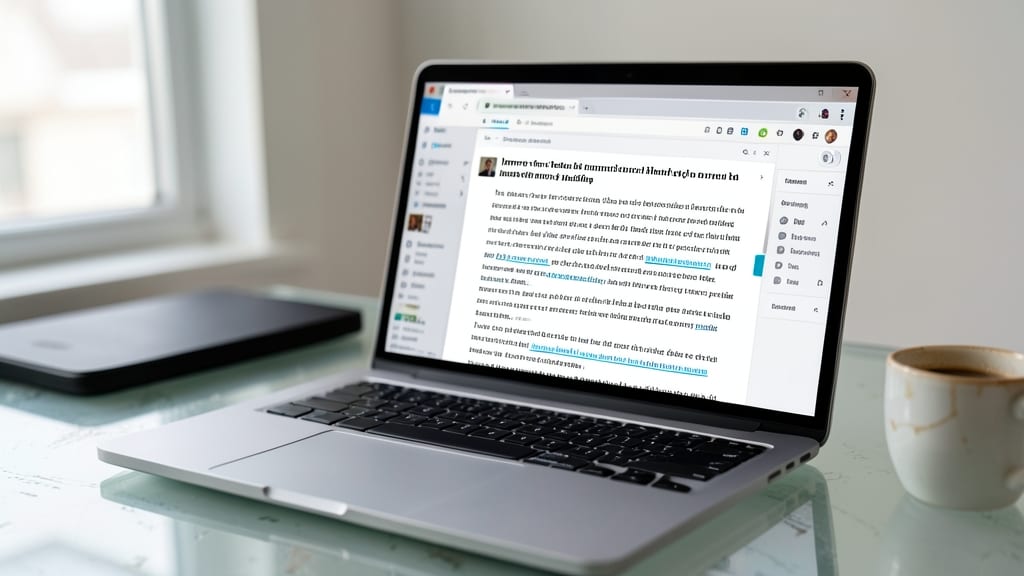
Struggling to focus while reading lengthy articles or research papers? Microsoft Edge’s Immersive Reader transforms your screen into a distraction-free zone, making complex content easier to digest. This built-in tool removes clutter by stripping away ads, sidebars, and even navigation menus, while offering customizable text size and spacing for optimal readability.
With adjustable font styles (including dyslexia-friendly options) and color themes, you can tweak the display to match your preferences. The text-to-speech feature lets you listen while following along, perfect for multitaskers or those who absorb information better auditorily. It’s free, requires zero setup, and works seamlessly across devices.
Students cramming for exams or professionals analyzing dense reports will love this—it’s like having a personal reading coach in your browser. Give it a try the next time you’re drowning in a wall of text. ✨
Use Collections to Organize Research Instantly
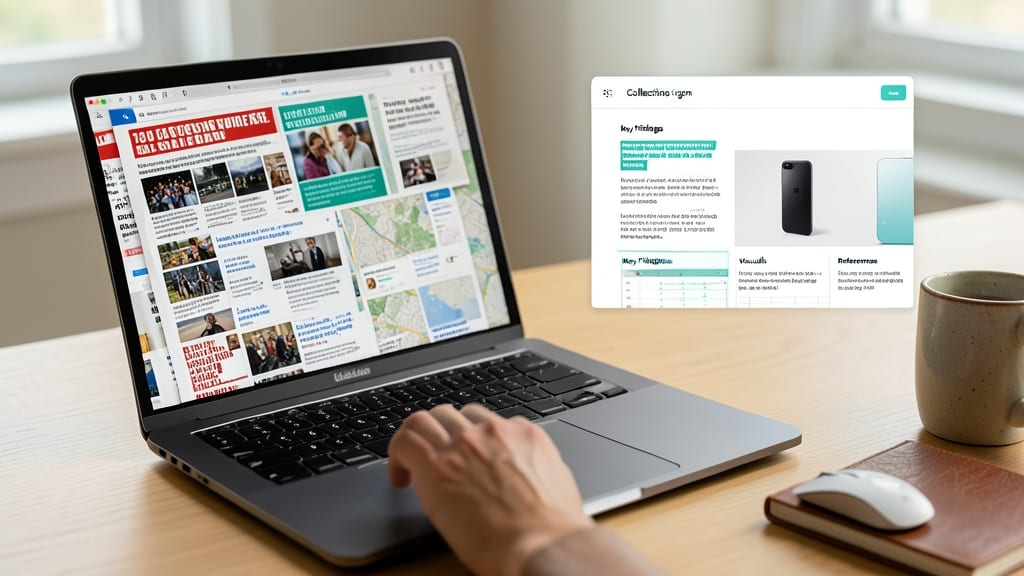
Drowning in tabs while researching? Microsoft Edge Collections turns chaos into clarity—let’s show you how. This built-in tool lets you clip text, images, and full pages from any site, then organize them into customizable, shareable boards—all without installing extra apps.
Start by clicking the Collections icon (three dots with a plus) in your toolbar, then drag content directly into your workspace. Add sticky notes for quick annotations, color-code categories, and even export your findings as a PDF or Word doc. The real-time collaboration feature lets you share collections with teammates, making it perfect for group projects or client presentations.
Researchers, writers, and project managers will love how Collections keeps everything in one place—no more lost bookmarks or scattered notes. Try it next time you’re compiling data, and watch your workflow transform. ✨
Customize Startup Pages for Productivity
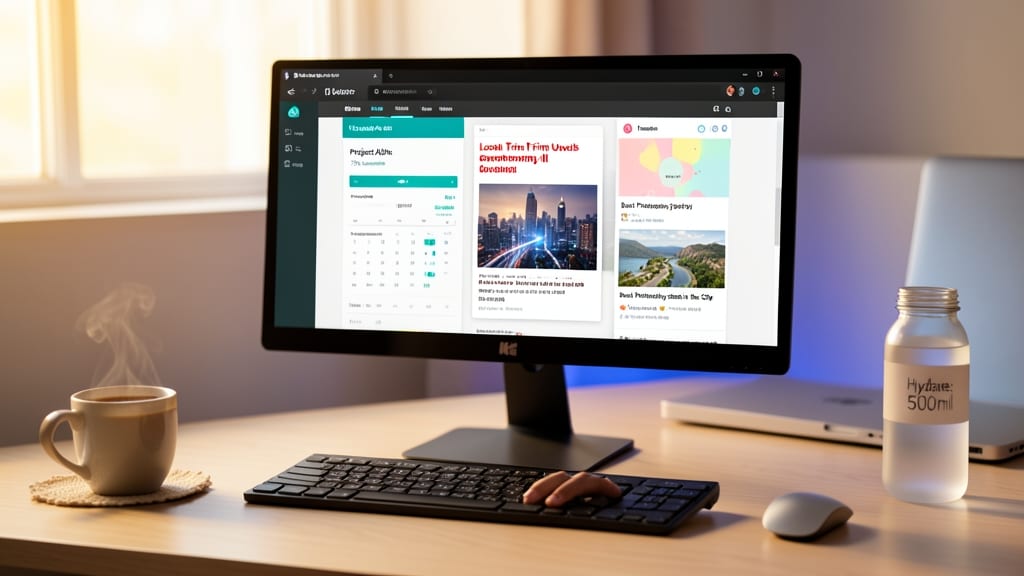
Tired of wasting precious morning minutes clicking through tabs to find your essentials? Microsoft Edge’s Startup Pages feature lets you curate a personalized launchpad—whether it’s your work dashboard, news sources, or hobby sites—so you open exactly what you need, instantly.
To set it up, go to Settings > On startup and choose "Open specific pages." Here, you can pin up to 12 tabs (including your most-used apps or bookmarks) or select from Edge’s suggested categories like news, weather, or productivity tools. The feature syncs across devices via your Microsoft account, so your setup follows you seamlessly. For extra speed, enable "Continuous startup" to load these pages automatically when Edge launches.
This trick is a game-changer for remote workers, freelancers, or anyone juggling multiple tasks—eliminate decision fatigue and dive straight into your day’s priorities. ⚡
Enable Dark Mode for Reduced Eye Strain

Late-night browsing or sensitive eyes? Microsoft Edge’s Dark Mode is your solution—cutting glare while saving battery life on laptops. This sleek, modern feature isn’t just about aesthetics; it’s designed to reduce eye strain during extended sessions, making it ideal for developers debugging code at 2 AM or anyone working in dim lighting.
To enable it, simply go to Settings > Appearance and toggle Dark Mode—no extensions required. The high-contrast UI automatically adjusts to your system’s color scheme, and it works seamlessly across Windows, macOS, and mobile. Studies show dark themes can reduce eye fatigue by up to 30%, while also extending battery life on laptops by 1-2 hours per charge. 💡
Perfect for night owls, gamers, or anyone who prefers a low-blue-light environment, Dark Mode transforms your browsing experience into a comfortable, efficient session. Give it a try—your eyes (and battery) will thank you! ✨
Use Vertical Tabs to Maximize Screen Space
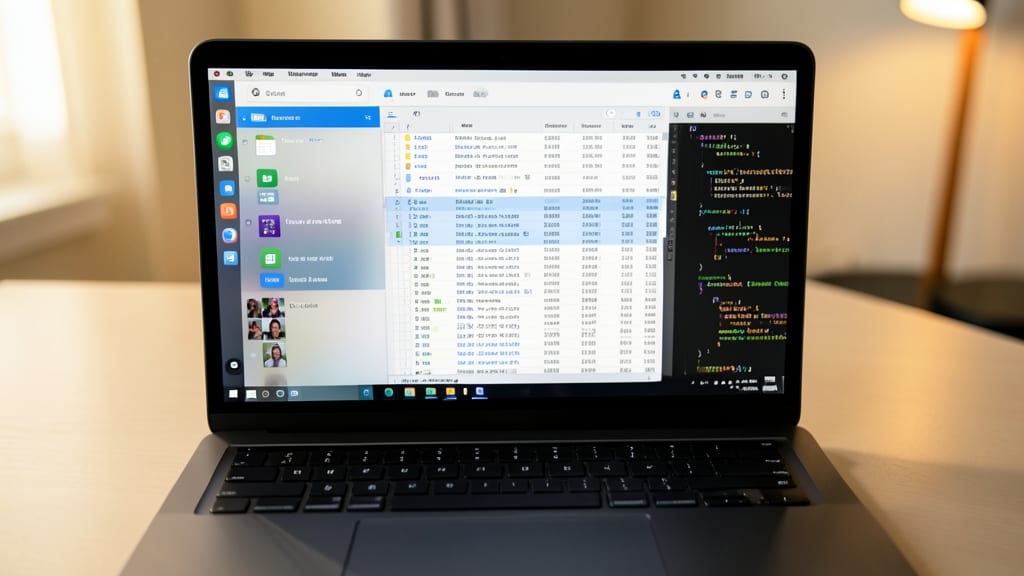
Tired of your browser tabs crowding out the screen and making multitasking a nightmare? Microsoft Edge’s vertical tabs feature transforms your workflow by stacking open tabs into a sleek, collapsible sidebar—freeing up precious horizontal space for spreadsheets, coding windows, or even full-screen videos.
To enable it, right-click any tab and select "Open vertical tabs"—or use the shortcut Ctrl+Shift+M. The sidebar appears on the left (or right, if you prefer), letting you switch between tabs with a single click while keeping your main workspace uncluttered. Need even more room? Drag the divider to adjust the width, or collapse the sidebar entirely when not in use.
This trick is a must-try for developers, designers, and data analysts juggling multiple tools at once. Say goodbye to tab overload and hello to a cleaner, more efficient browsing experience. ✨
Block Distractions with Focus Assist
Drowning in notifications during work? Microsoft Edge’s Focus Assist acts like a digital "Do Not Disturb" button—automatically blocking social media, news, and low-priority sites to lock you into deep work mode.
Enable it via Settings > Focus Assist (Windows) or Edge Menu > Focus Assist (macOS), then customize blocked sites and set schedules. The "Always allowed" list ensures critical work tools stay accessible, while "Priority only" mode filters everything except essential sites. For extra control, sync settings across devices using your Microsoft account.
Perfect for writers, developers, or anyone battling digital distractions—turn it on during meetings or creative sprints for uninterrupted focus. ⚡
Speed Up Browsing with Bing Search Shortcuts
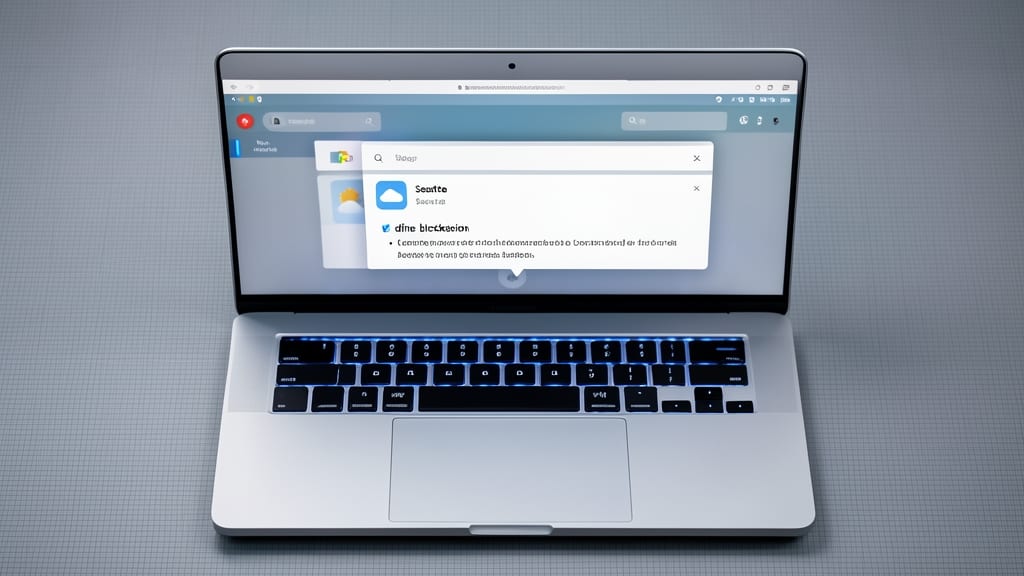
Tired of clicking through search results just to find a quick answer? Microsoft Edge’s Bing Search Shortcuts deliver instant results—no full-page load required. Type queries like "weather in Seattle" or "define blockchain" directly into the address bar, and Edge displays answers in a sleek dropdown menu before you even hit Enter.
This feature supports 10+ shortcut types, including weather, stocks, unit conversions, and even flight statuses. The zero-config setup means it works out of the box, and you can customize which shortcuts appear by toggling them in Edge’s settings. For developers, it’s a lifesaver for quick API docs or syntax checks without leaving your IDE. ⚡