
Coding
Struggling to clean or manipulate text data in Excel? These 10 essential text functions will transform messy datasets into polished, professional information with minimal effort. Learn how to extract, combine, and format text like an Excel expert.
Concatenate Function for Combining Text Strings
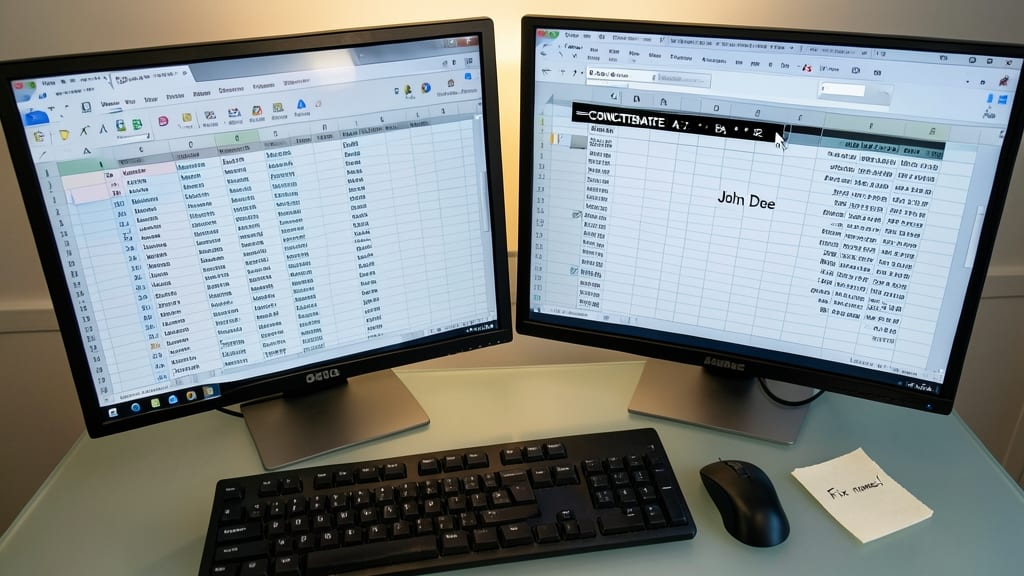
Tired of manually typing full names or addresses from scattered columns? The CONCATENATE function in Excel merges text from multiple cells into one with just a simple formula—no copy-pasting required.
To use it, type =CONCATENATE(A2, " ", B2) (replace A2 and B2 with your cell references) to combine first and last names with a space in between. For example, if A2 holds "John" and B2 holds "Doe," the result will be "John Doe." You can also nest it with other functions like TRIM to remove extra spaces or UPPER to standardize case.
This is a game-changer for anyone managing databases, creating mailing lists, or formatting reports. Perfect for small business owners, HR teams, or anyone dealing with messy data. ⚡
Text to Columns for Splitting Data

Tired of manually splitting comma-separated values (CSV) or pipe-delimited text into separate columns? Excel’s Text to Columns tool automates this tedious task in seconds—no formulas required.
Simply select your data, navigate to Data > Text to Columns, and choose your delimiter (comma, tab, semicolon, etc.). Excel instantly splits your text into clean, organized columns, handling thousands of rows without errors. It even detects fixed-width data if your text aligns in columns. For example, turn a list like "John Doe, New York, 12345" into three distinct columns with one click.
This function is a lifesaver for data analysts, small business owners, or anyone importing messy datasets from external sources. No coding skills needed—just point, click, and transform raw text into structured data. ✨
LEFT, RIGHT, and MID Functions for Extracting Text

Need to pull out just the ZIP code from a full address or extract a product code from a longer string? The LEFT, RIGHT, and MID functions are your Swiss Army knives for precise text extraction in Excel.
Use LEFT(A1,5) to grab the first 5 characters from cell A1 (perfect for ZIP codes or codes), RIGHT(A1,4) to snag the last 4 characters (like extensions or suffixes), or MID(A1,7,3) to extract any middle segment (e.g., pulling "123" from "ABC123XYZ"). These functions let you target specific positions without rewriting entire formulas.
Accountants extracting tax IDs, e-commerce teams pulling SKUs, or anyone cleaning messy datasets will find these tools indispensable for automating repetitive text tasks. ✨
SEARCH and FIND Functions for Locating Text

When you’re buried in a spreadsheet with thousands of rows and need to pinpoint specific text—like a missing invoice number or a typo in a product description—SEARCH and FIND become your lifeline. Unlike other text functions, these two don’t just extract or format; they actively hunt down patterns, even if the case doesn’t match exactly.
The SEARCH function returns the position of a substring (case-insensitive) within a cell, while FIND does the same but requires an exact match (case-sensitive). For example, =SEARCH("Inc","Microsoft Inc.") returns 10, telling you where "Inc" starts, while =FIND("inc","Microsoft Inc.") returns an error. Pair them with IFERROR to handle missing matches gracefully, or nest them in IF statements to flag errors automatically.
Accountants auditing financial records, data analysts cleaning datasets, or anyone troubleshooting errors will find these functions indispensable for spotting inconsistencies at scale. ⚡
SUBSTITUTE Function for Replacing Text

Tired of manually fixing typos or inconsistent abbreviations across thousands of rows? The SUBSTITUTE function automates replacements with precision—whether you're correcting "Inc." to "Incorporated", standardizing "USA" to "United States", or removing placeholder text like "[EMAIL]".
Use the syntax =SUBSTITUTE(text, oldtext, newtext, [instancenum]) to replace all occurrences or specify which instance to change. For example, =SUBSTITUTE(A1, "Inc.", "Incorporated") instantly updates company names in column A. The optional [instancenum] lets you replace only the first, second, or nth match—ideal for partial corrections.
Perfect for data analysts cleaning datasets, marketers standardizing product names, or anyone battling inconsistent text entries. Try it on a sample dataset to see how it transforms messy data into a polished, professional format. ✨
TRIM Function for Cleaning Extra Spaces

Ever imported data from external sources—only to find your formulas failing because of sneaky extra spaces, tabs, or line breaks? The TRIM function is your secret weapon for cleaning up messy text automatically.
With a simple syntax like =TRIM(text), this function removes all leading, trailing, and extra spaces between words—including those invisible characters that can break formulas. It even handles tabs and line breaks, making it perfect for preparing data for further analysis or merging cells without errors. Unlike manual fixes, TRIM works instantly across entire columns.
Accountants reconciling financial data, marketers cleaning email lists, or analysts merging datasets will find this function a game-changer for consistency. Just one formula can save hours of manual editing! ✨
UPPER, LOWER, and PROPER Functions for Text Formatting

Tired of inconsistent text cases ruining your reports or data exports? The UPPER, LOWER, and PROPER functions instantly standardize text—whether you need all-caps labels, lowercase filenames, or title-case headings for professional documents.
Use UPPER() to convert text like "apple" to "APPLE"—perfect for headers or database keys. LOWER() forces consistency (e.g., "Excel" → "excel"), while PROPER() capitalizes each word ("john doe" → "John Doe") for polished reports. These functions work in zero config and handle thousands of rows instantly.
Accountants standardizing financial reports, marketers prepping social media posts, or developers cleaning API responses will find these functions indispensable for error-free exports and professional formatting. ✨
LEN Function for Counting Characters

Need to ensure phone numbers are complete or verify ZIP codes? The LEN function is your secret weapon for counting characters in any text string—no manual counting required.
Simply type =LEN(cell) to get the exact character count, which you can then use in IF statements to validate data. For example, check if a phone number has 10 digits or confirm a ZIP code is 5 characters long. Combine it with other functions like LEFT or RIGHT to extract specific segments based on length.
This is perfect for data analysts, customer support teams, or anyone managing structured text inputs. A quick way to catch errors before they become bigger problems! ✨
REPT Function for Repeating Text

Need to create professional-looking dividers, borders, or placeholder text in Excel without manually typing? The REPT function lets you repeat any text string a specified number of times—perfect for generating labels, headers, or visual data markers instantly.
With REPT(text, number_times), you can generate everything from simple asterisk dividers (like =REPT("*",50) for a horizontal line) to custom patterns like repeating your company logo text. The function even works with numbers or symbols, giving you full creative control over formatting. For example, =REPT("-",10) creates a clean dashed line for section breaks.
This is a game-changer for designers, report creators, or anyone who needs to add visual structure to spreadsheets without extra steps. Try it next time you're formatting invoices, labels, or presentation slides! ✨
TEXTJOIN Function for Advanced Text Combination

Tired of dealing with messy concatenation errors in Excel? The TEXTJOIN function is your game-changer, offering flexibility that CONCATENATE can’t match. Unlike older functions, it lets you skip empty cells and add custom delimiters—no more unwanted spaces or commas!
With TEXTJOIN(delimiter, ignore_empty, text1, text2, ...), you control the output precisely. For example, merge a list of products with commas only between filled cells: =TEXTJOIN(", ", TRUE, A2:A10). It’s perfect for combining data from multiple columns while ignoring blanks or errors, making it ideal for reports or data exports.
This function shines when working with dynamic datasets or cleaning up data from external sources. Whether you're formatting invoices or consolidating survey responses, TEXTJOIN streamlines the process with zero config hassle. ✨